Chrome features and downloads
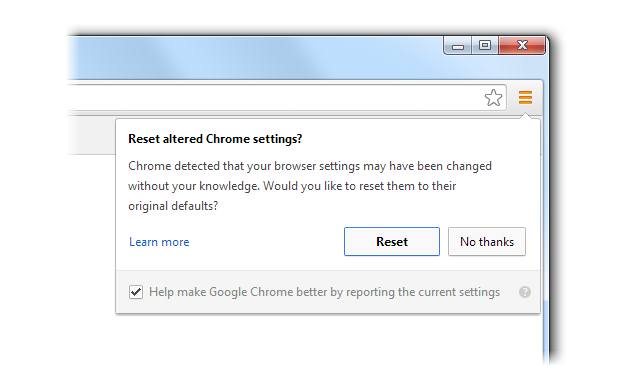
According to Google it's new update is going to work even with 10 percent less RAM and will increase your battery life to 15 percent. New Chrome will autmatically detect and fix setttings.
 New Chrome is working on flash contents. Now Chrome will auto pause Flash contents by default which are not being used while browsing. Google has annaunced that in their testing they found that this feature will increase your battery life to 15 percent..
Download Guide
Windows
To install Chrome for your user account:
If prompted, click Run or Save.
If you chose Save, double-click the installer file to start the installation process. We'll automatically import your homepage settings and browser history for you.
Start Chrome:
- Windows 7/Vista: A Chrome window opens once everything is set up.
- Windows 8: A welcome dialog appears, click Next to select your default browser. If you choose Google Chrome, it'll launch as a Windows 8 app from the Start Screen.
System requirements
To use Google Chrome, your computer needs:
- Windows Vista, Windows 7, Windows 8, or Windows 10
Note: Support for Windows XP and Vista will end soon. Learn more - An Intel Pentium 4 processor or later that's SSE2 capable
- 350MB of free disk space
- 512MB of RAM
Mac
- Download the installer file.
- Open the file called "Google Chrome.dmg."
- In the window that opens, find the Chrome icon
. Drag it to the Application folder. We'll automatically import your homepage settings and browser history for you.
Note: If you don't have administrative rights, drag the icon to a location on your computer where you do have rights, such as your desktop. - Find the dock, then drag the Google Chrome disk image to the Eject icon
.
System requirements
To use Google Chrome, your computer needs:
- Mac OS X 10.6 or later
Note: Support for Mac OS X 10.6, 10.7, and 10.8 will end soon. Learn more - An Intel processor that's 64-bit
- 350MB of free disk space
- 512MB of RAM
Linux
Use the same software that installs programs on your computer to install Chrome. Make sure you have administrative access first.
- Download the installer file.
- Click OK to open the package.
- Click Install Package.
- A Chrome window opens once everything is set up. Google Chrome will add its program information to your software manager so that it can be kept up-to-date.
System requirements
To use Google Chrome, your computer needs:
- Ubuntu 12.04+, Debian 7+, OpenSuSE 13.1+, or Fedora Linux 21
- An Intel Pentium 4 processor or later
- 350MB of free disk space
- 512MB of RAM